How to properly update your WordPress website & plugins
June 24, 2026
Almost every WordPress website uses prebuilt features and tools known as plugins. There are over 90,000 plugins available for any WordPress website, such as plugins that secure your website, plugins that help improve your website’s search engine visibility, or plugins that add functionality like accordions or sliders.
WordPress websites use roughly 20-30 plugins on average, and as is the case with anything technology-related they often require updates to ensure stability and security. It’s not just the plugins you should be updating, but WordPress itself requires feature and security updates. The process should be straightforward as long as the following necessary steps are taken.
Confirm if the update is necessary
Just because WordPress or a plugin prompts you to update it, it doesn’t mean that you should. The plugin changelog will indicate what type of updates were made for the latest version and if it’s security-related, we highly recommend performing the update. If the update is for enhancements (like a new feature), you can skip the update if the plugin is already meeting your needs and performing properly.
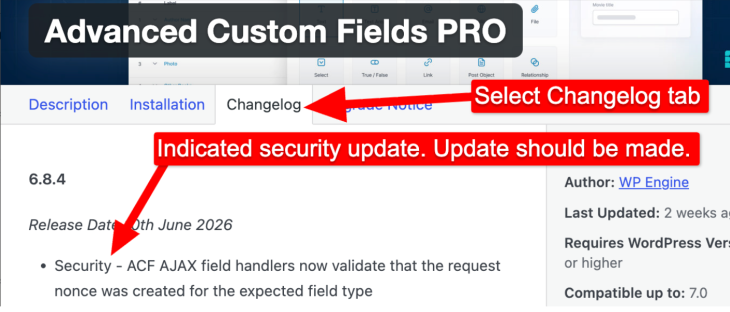
Identifying whether an available update is security-related
Update a stage environment first, then test
We recommend never updating WordPress and its plugins on your live/production website without taking the time to properly test. It’s possible that a plugin update may break your website, so it’s best to first test all required updates on a cloned version of your website (known as a stage environment). This allows you to perform a thorough test and, in the case of the updates breaking your WordPress website, resolve the conflicts before updating your live site.
It’s important to understand the potential impact of your updates. WordPress and most plugins use a three-part version numbering system formatted as: MAJOR.MINOR.PATCH.
- If a plugin moves from version 4.6.22 to 4.6.23, this is a patch update. Patch updates typically include bug fixes, so it’s highly likely they will not break your website or cause a conflict.
- If the version changes from 4.6.22 to 4.7.0, this is a minor update. Minor updates often introduce new features or improvements and carry a slightly higher risk, but it’s still uncommon for them to cause issues when performing the plugin update.
- If the plugin updates from 4.6.22 to 5.0.0, this is a major update. Major updates can include significant changes or restructuring of the plugin files, so while they still shouldn’t break your website, the risk is higher and it’s a good idea to test the update first.

Identifying the current and update plugin versions
Once you have updated and fully tested WordPress and all plugins on stage and any potential conflicts have been resolved, you should be safe to perform these updates on your live website.
Perform a live backup
Before making any changes to your live website, we highly recommend backing it up. Even though you already have a backup on stage, there could have been database changes since the stage environment was set up, so we always recommend doing it again.
You should now be safe to update WordPress and all plugins on your live website. If for some reason the updates do not go as expected, you always have an update you can restore!
It may require some time investment to investigate and update your plugins, but you can be rest assured your live website remains operating properly as long as you follow these steps!